
AppGrid guide
How to create custom app folders on Mac
Create custom app folders on Mac with AppGrid’s free drag-and-drop method or Pro multi-select workflow.
Quick answer: Apple’s Apps view in macOS 26 and later uses automatic categories rather than user-arranged Launchpad folders. AppGrid restores manual organization on macOS 14.6 or later. Drag one app onto another to create a folder, or use AppGrid Pro to select several apps and group them in one action.
Can you group apps into folders on Mac?
Apple replaced Launchpad with the Apps view beginning with macOS 26 Tahoe. The built-in view offers a grid, a list, and automatic categories, but Apple does not document controls for creating your own folders or manually arranging apps.
AppGrid is a separate app launcher that provides user-created pages and folders. It does not modify Apple’s Apps view or reinstall the original Launchpad.
Method 1: create an app folder by dragging
The simplest way to create a folder is to drag two apps together:
- Open AppGrid and enter Edit mode by clicking the pencil icon or pressing Command + E.
- Drag one app directly onto another app.
- AppGrid creates a folder containing both apps.
- Enter a descriptive name when AppGrid opens the rename dialog.
- Drag additional apps onto the new folder whenever needed.
Folders are not automatic categories
You decide which apps belong together and what the folder is called. For example, you might create folders named Design, Finance, Games, Music, or Work.
Method 2: group multiple apps at once with AppGrid Pro
When you already know which apps belong together, Pro’s multi-select workflow is faster than dragging them one by one.
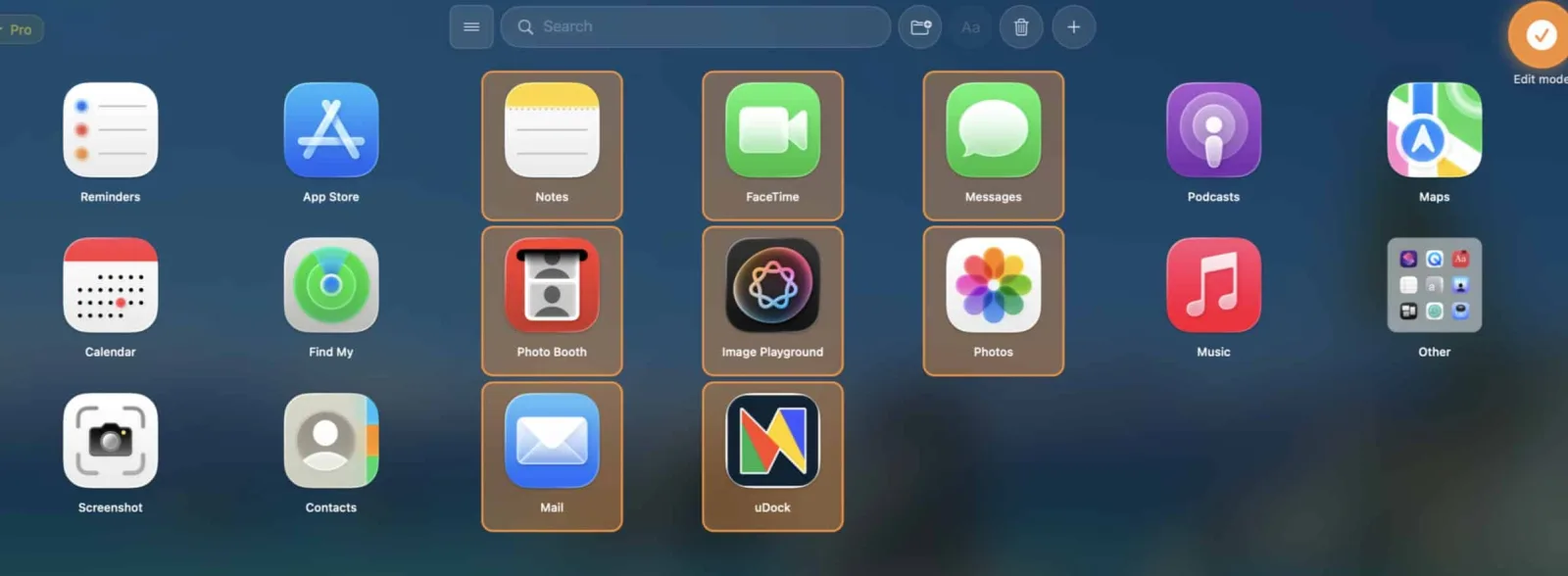
- 1
Enter Edit mode
Click the pencil icon or press Command + E. AppGrid displays the editing controls above the grid.
- 2
Select the applications
Hold Command and click each app you want to group. Keep holding Command as you extend the selection. Selected apps receive a highlighted outline. Select applications only, because AppGrid does not place folders inside other folders.
- 3
Click the create-folder button
Choose the folder button with a plus sign in the Edit mode toolbar. AppGrid moves the selected apps into a new folder.
- 4
Name the folder
AppGrid opens the rename dialog after creating the folder. Enter a name that will still make sense when more apps are added.
Add and move apps after creating a folder
Use whichever method fits the situation:
- Drag an app: in Edit mode, drag the app onto the folder.
- Use the context menu: right-click an app and choose Move to Group, then select the destination folder.
- Move a search result: if search is the only practical way to find an app, right-click the result and use Move to Group. Search results cannot be dragged directly into a visible folder.
Moving one app at a time works in every edition. Moving several selected apps together is a Pro multi-select operation.
Rename a folder
Open the folder and click its title, then enter the new name. You can also select the folder in Edit mode and use the rename button in the editing toolbar.
What happens when a folder fills up?
AppGrid folders can contain multiple pages. When the current folder page has no free slots, AppGrid creates another page and displays page controls inside the open folder. Swipe or use those controls to move between its pages.
Nested folders are not supported
You can place apps inside a folder, but you cannot place one folder inside another. Use separate folders or AppGrid pages for another level of organization.
Build a visual app layout again
Download AppGrid free to create pages and folders. Upgrade only if bulk grouping and other multi-select tools are useful to you.
Frequently asked questions
Can you create your own app folders on Mac?
Apple’s Apps view in macOS 26 and later automatically categorizes applications, but Apple does not document a way to create and arrange custom folders there. AppGrid provides a visual grid with user-created folders and pages on macOS 14.6 or later.
Are folders free in AppGrid?
Yes. AppGrid’s core pages and folders are free. Creating a folder by selecting several apps at once uses a Pro multi-select operation; free users can create a folder by dragging one app onto another.
Can an AppGrid folder contain multiple pages?
Yes. When a folder contains more apps than fit on one page, AppGrid adds another page and shows page controls inside the open folder.
Can I put one AppGrid folder inside another?
No. AppGrid supports apps inside folders, but not nested folders.